FAQ
Frequently Asked Questions
Tap the browse button in the bottom navbar. That will take you to a view that looks like this:
From there, select a source.
Begin by navigating to a supported source in the browser. Then make your way to a story page.
Look at the upper right hand corner of the browser. You will see different icons depending on your current location.
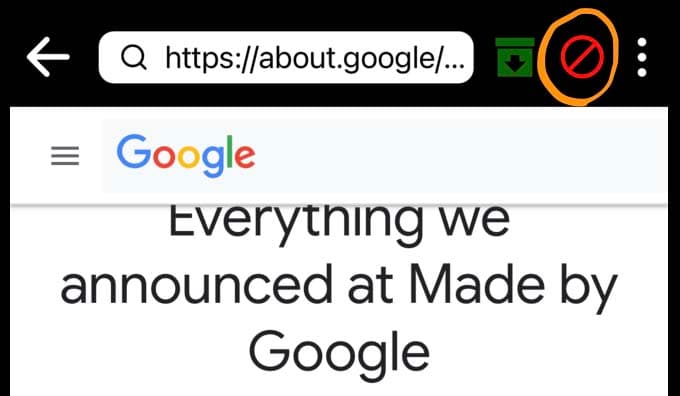
If you are not on a supported source you will see the icon below:
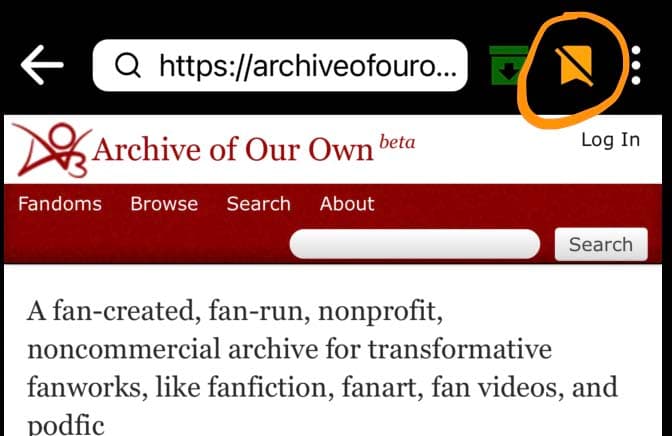
If you are on a supported source but not on a story page you will see the icon below:
And if you are on a story page, where bookmarking is available, you will see the icon below:
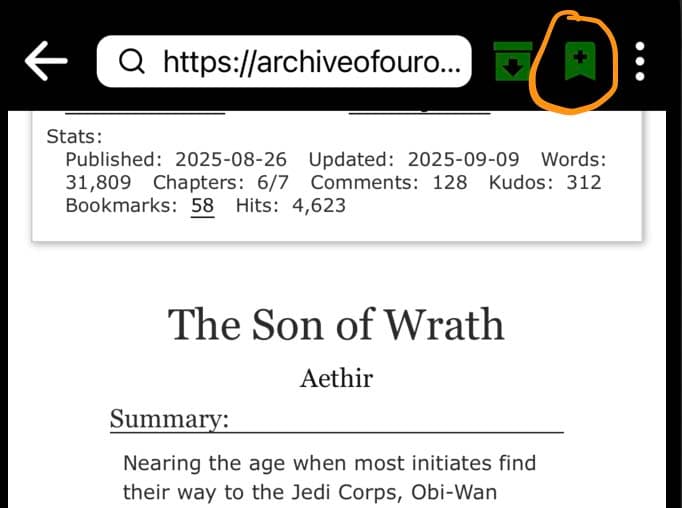
Press the bookmarking icon to save the story to your library. A pop-up will appear, as seen below:
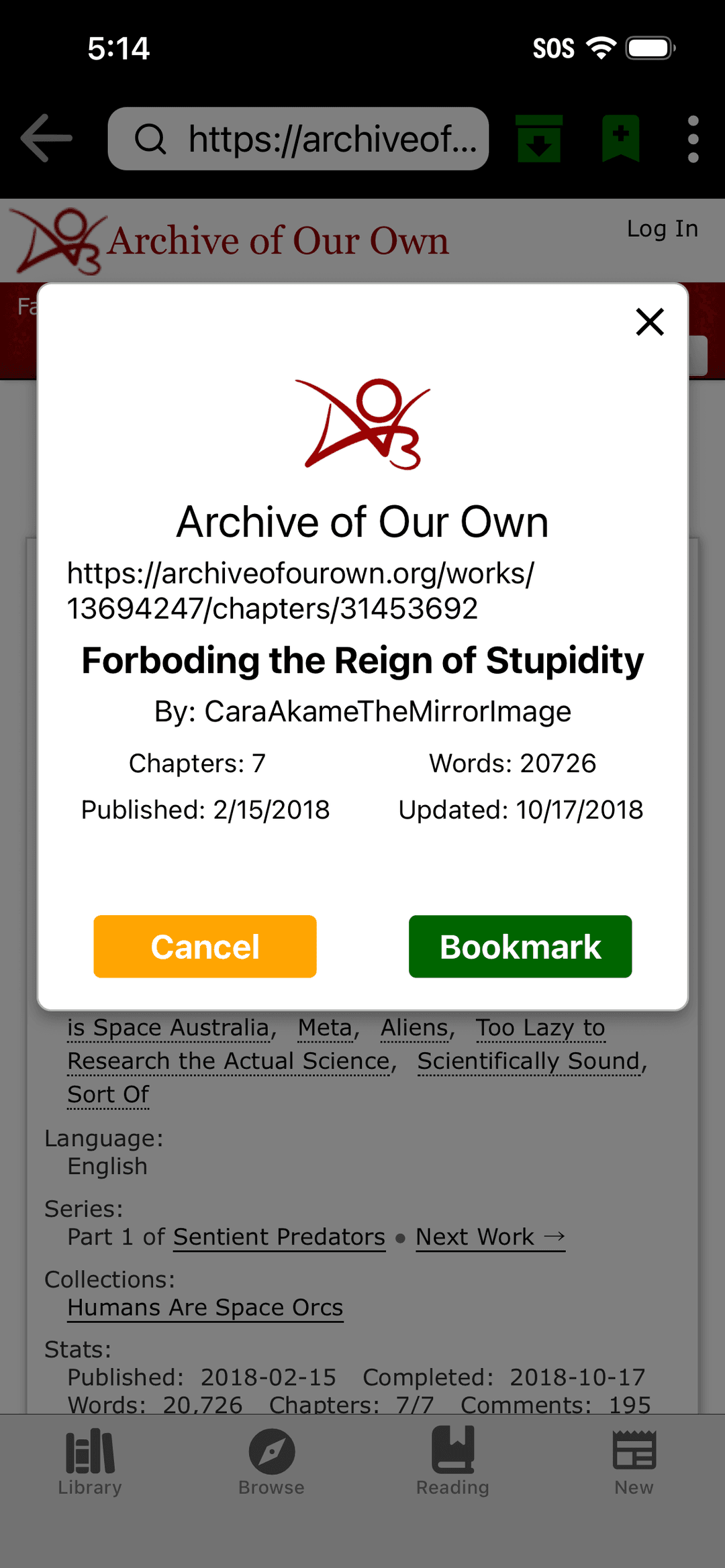
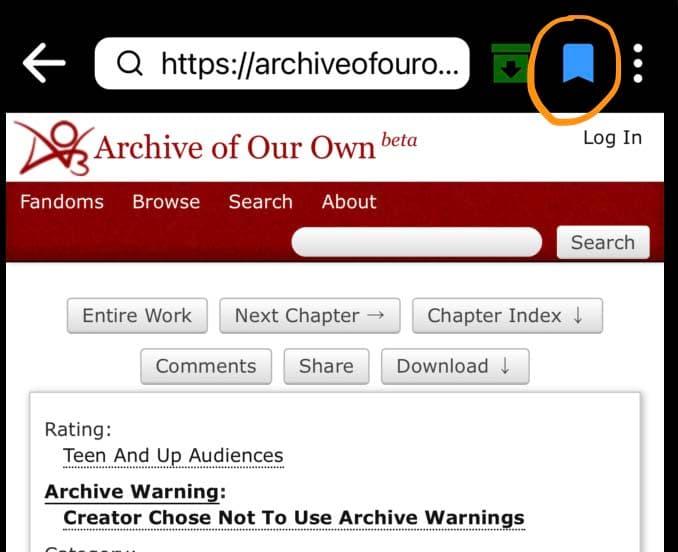
Confirm your bookmark. The bookmark icon will now be blue on this page.
The story will now appear in your library.
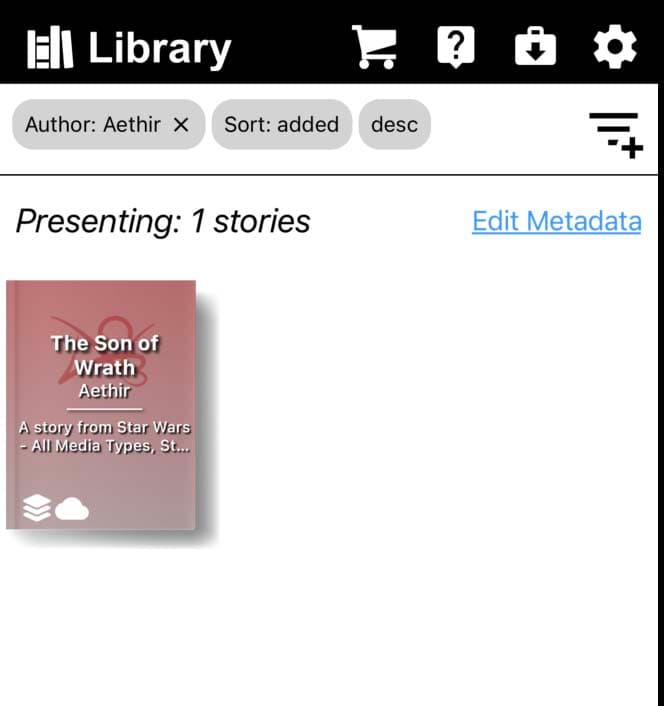
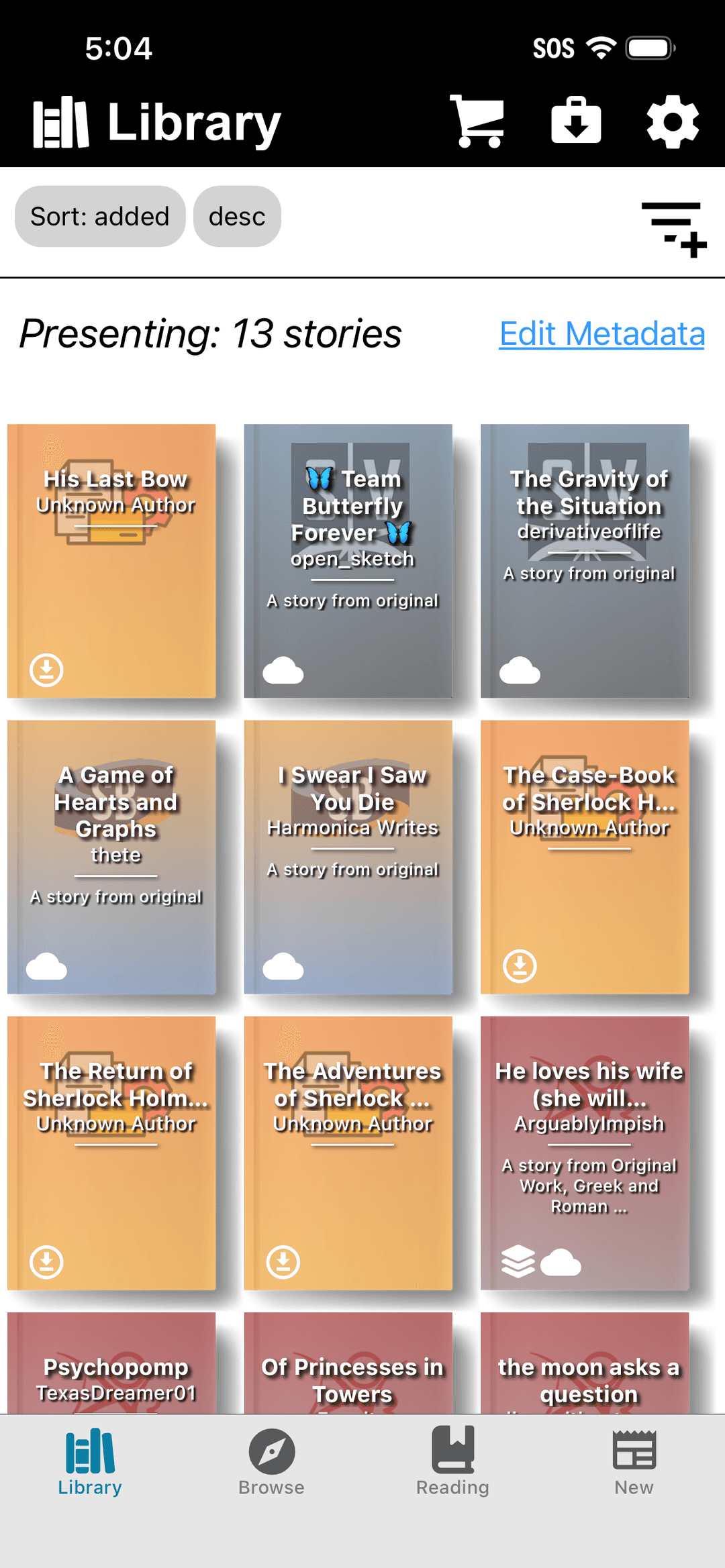
Select the story you wish to read from the library.
To stream the story, press either the floating 'continue reading' button or the listed segment you wish to read.
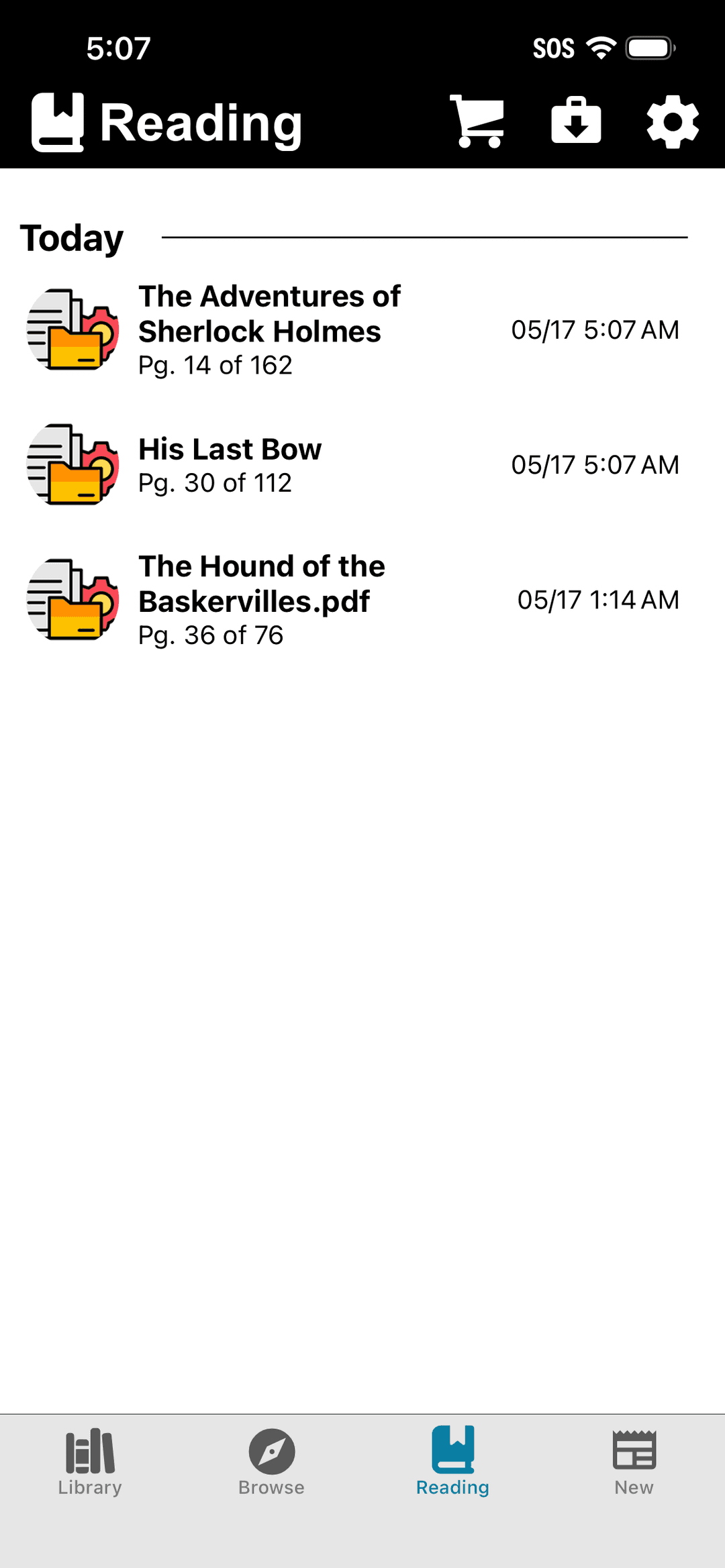
To download the story for offline reading, press the download icons. The topmost download icon adds all story segments to the download queue. Download icons in the segment list will add a single segment to the queue.
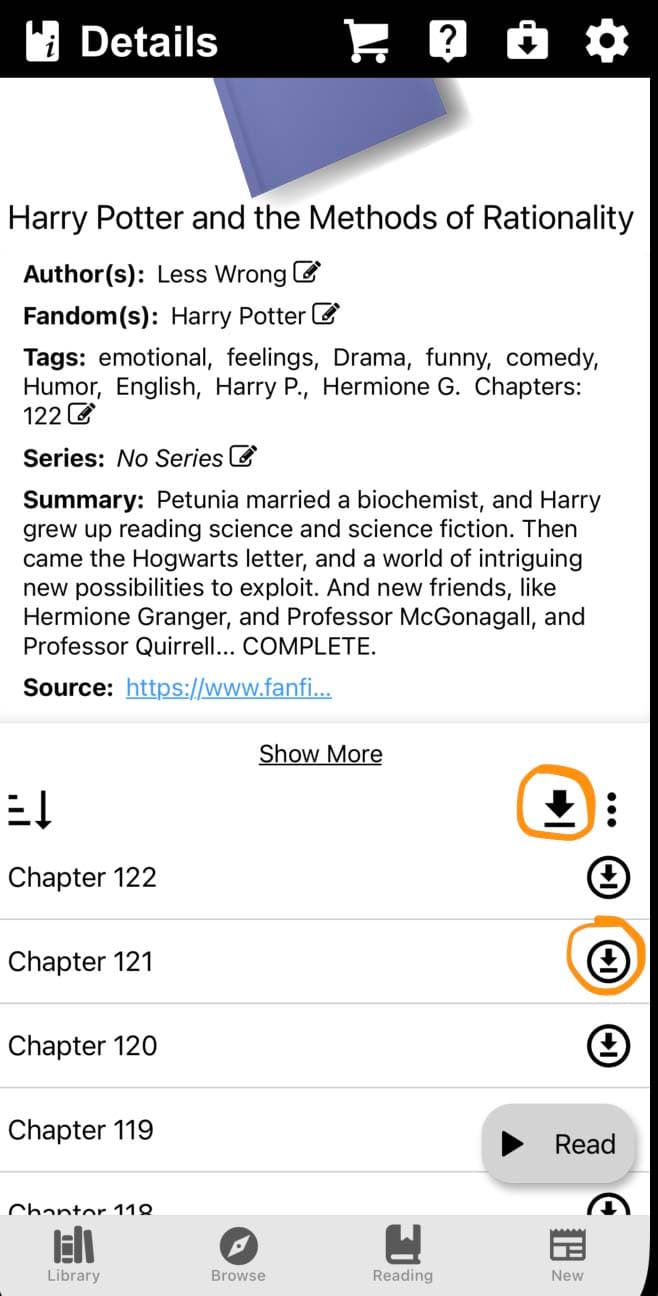
Upon activating the download these indicators will replace the download icons.
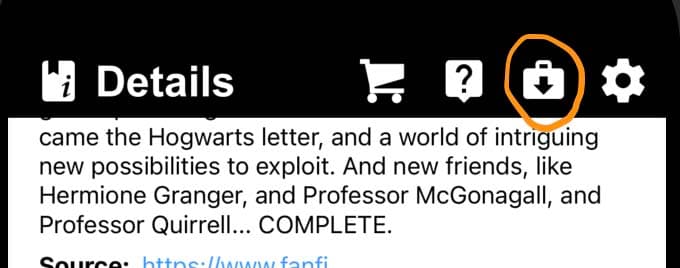
Downloading stories will appear in the download queue. Press the icon below to navigate to the download queue.
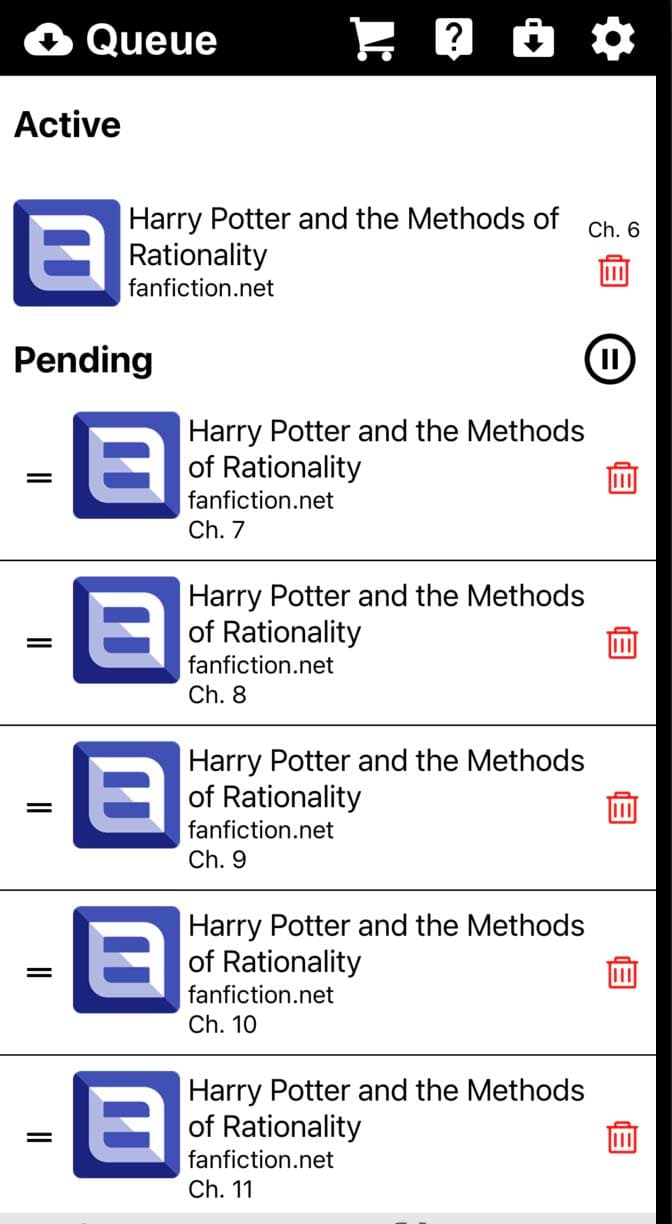
Use the pause button to halt downloads. Long press and drag queued items to reorder downloads. Press the delete icon to remove the download from the queue.
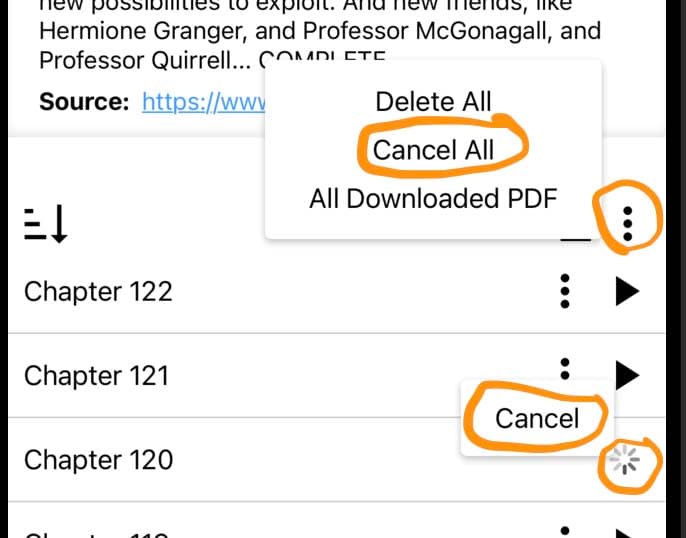
To cancel all downloads in a story. Press the highlighted icons to prompt the 'Cancel' and 'Cancel All' options.
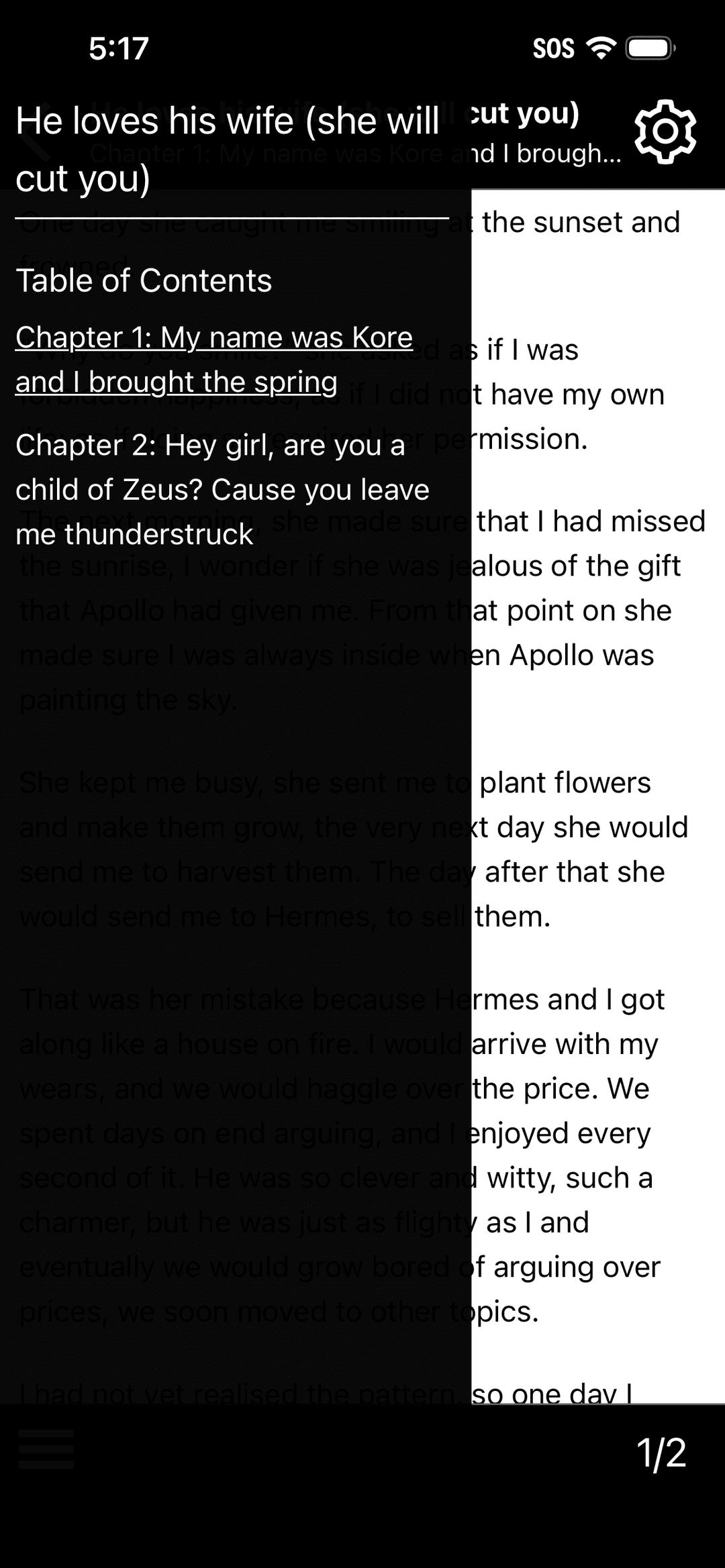
Read your story.
Learn how to reach an unsupported source here.
After navigating to an unsupported source you wish to add to your library, press the capture icon located on the right of the search bar.
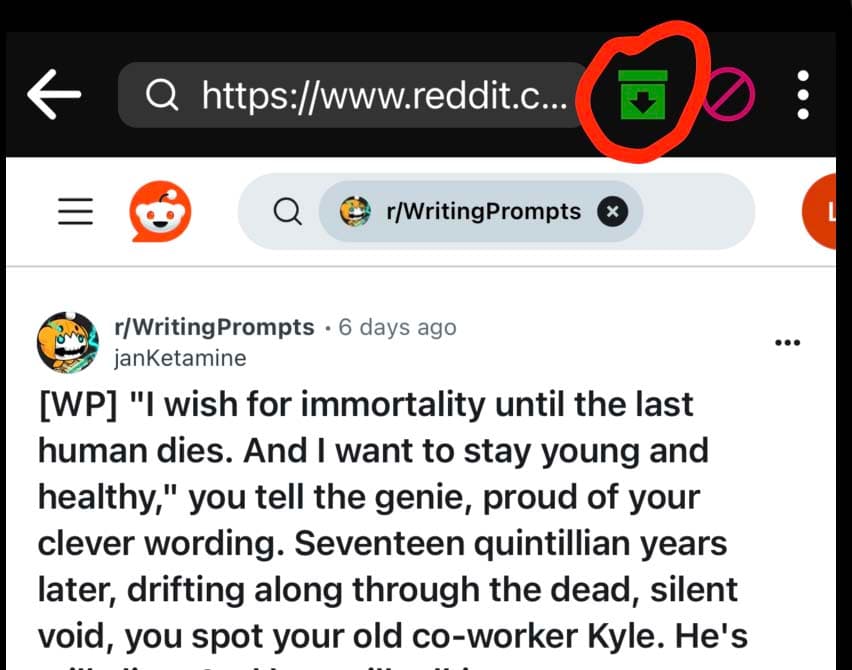
This will activate a small tool column on the bottom right.
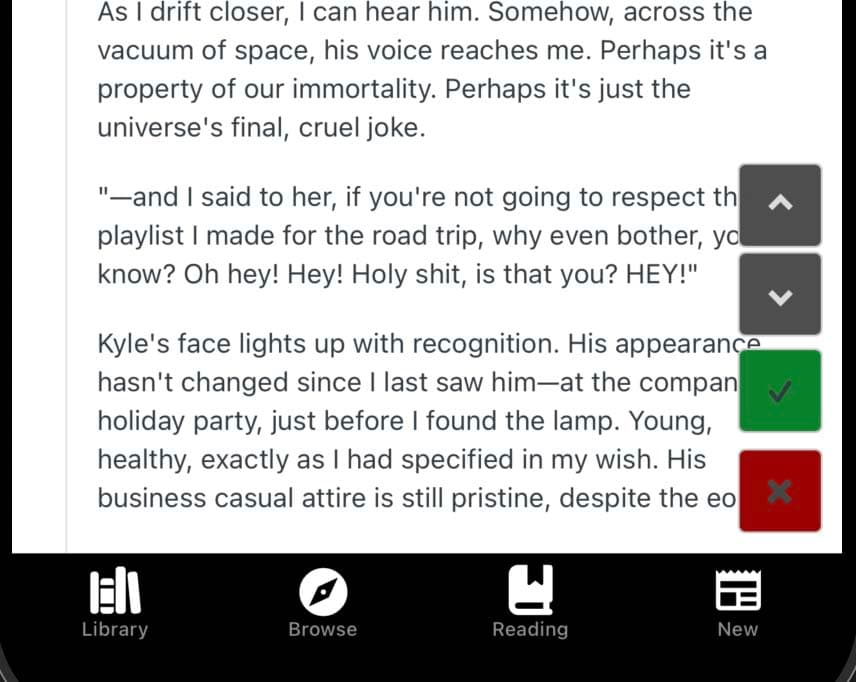
Tap the content on the page that you wish to make your first chapter. The image below shows the results of a single press on the content of a Reddit comment.
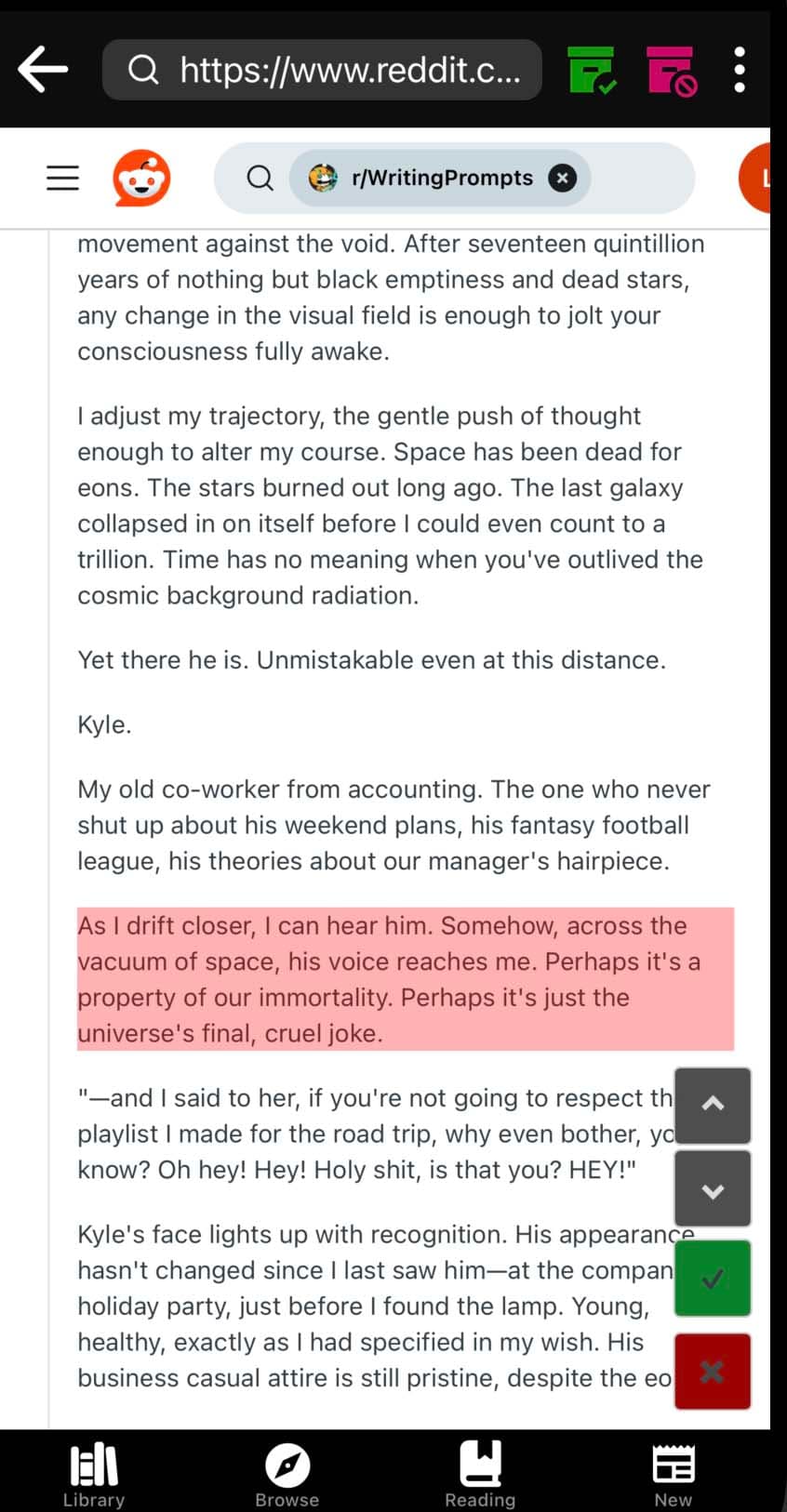
Your initial press selects the lowest level element under your finger. Use the gray arrows on the bottom right to navigate up and down the element tree until you reach the correct level for the selection. The image below shows the result of a single upward traversal.
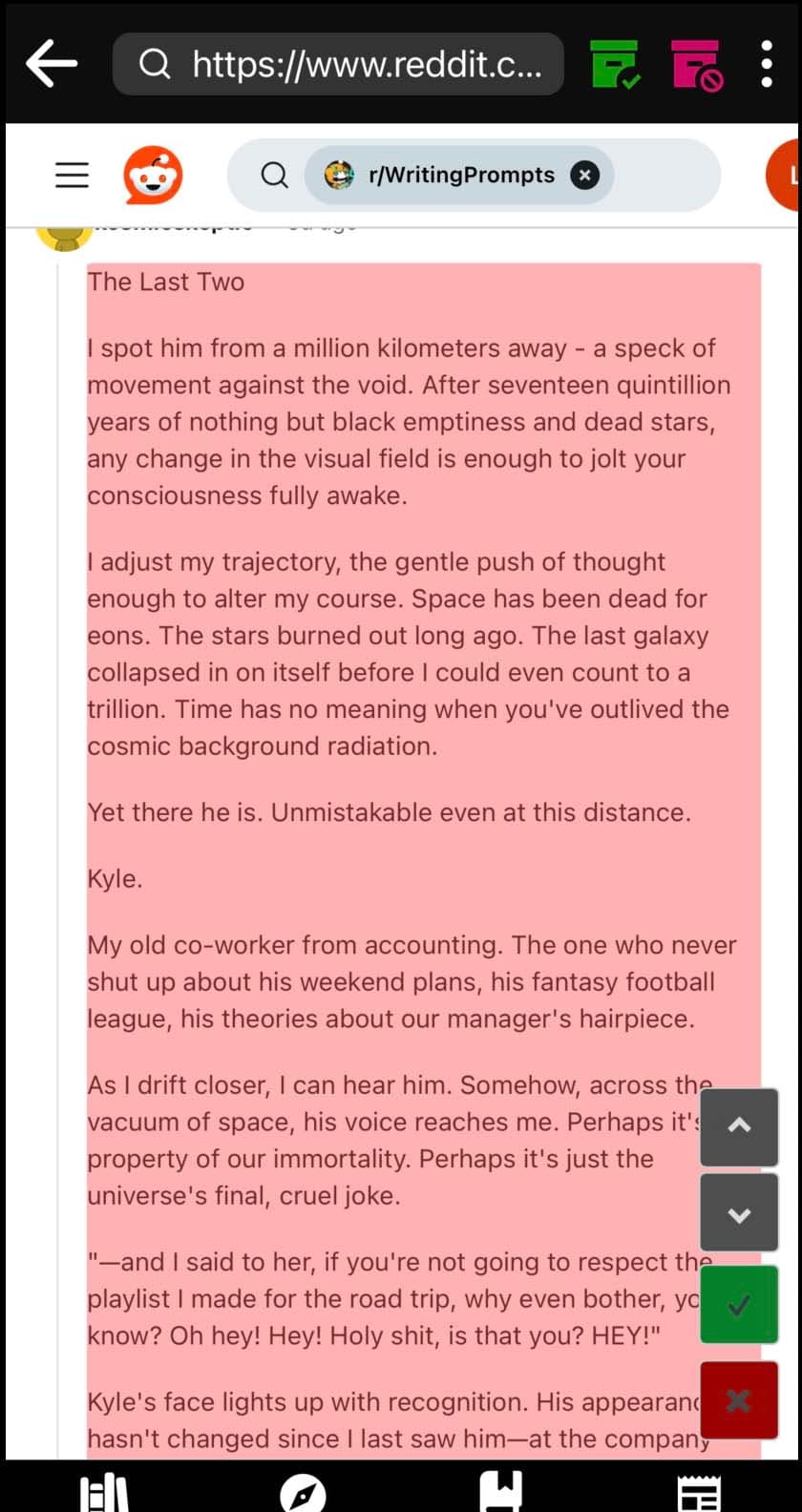
Press the checkbox button in the bottom right to accept the selection. Press the close button in the bottom right to cancel the selection.
Pressing the checkbox button will open a modification modal, as seen below.
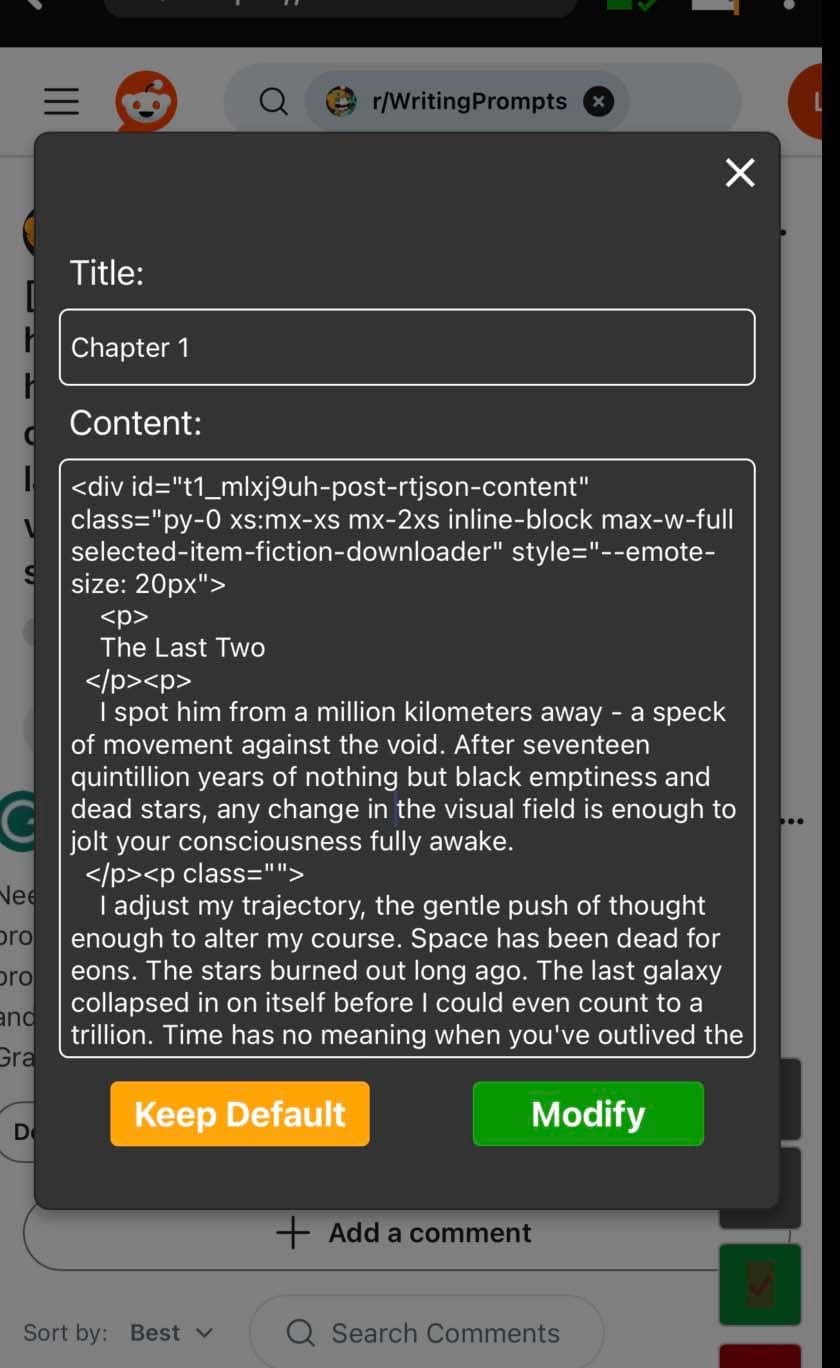
Repeat the above process as many times as necessary to grab additional sections of the story. You can navigate the browser and visit other pages while collecting segments.
Press the second box icon to view the segments added to the story.
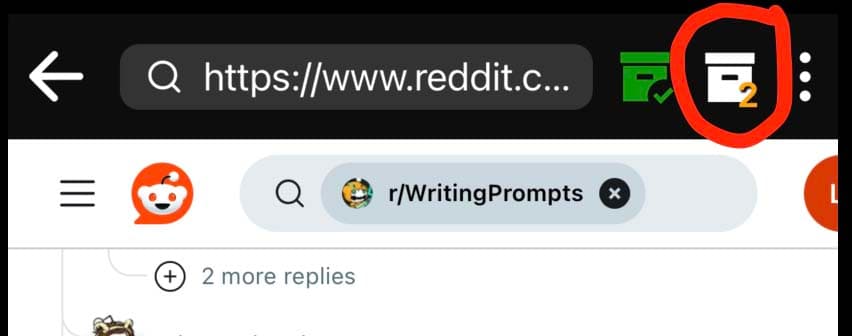
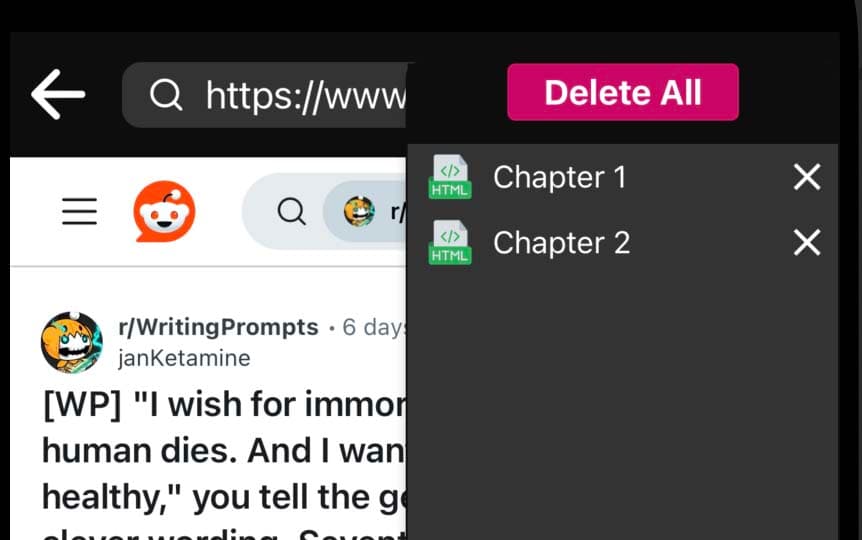
Press the individual items to open an edit modal for them. Long press and drag to change their order. And press the 'x' next to the item to delete the item.
Press the box icon with the checkmark in the upper right to finish putting together a story.
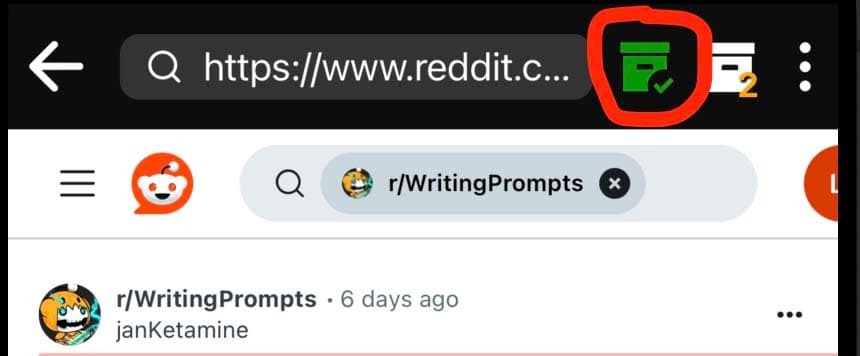
This will open a completion modal where you may name the story and specify the originating url.
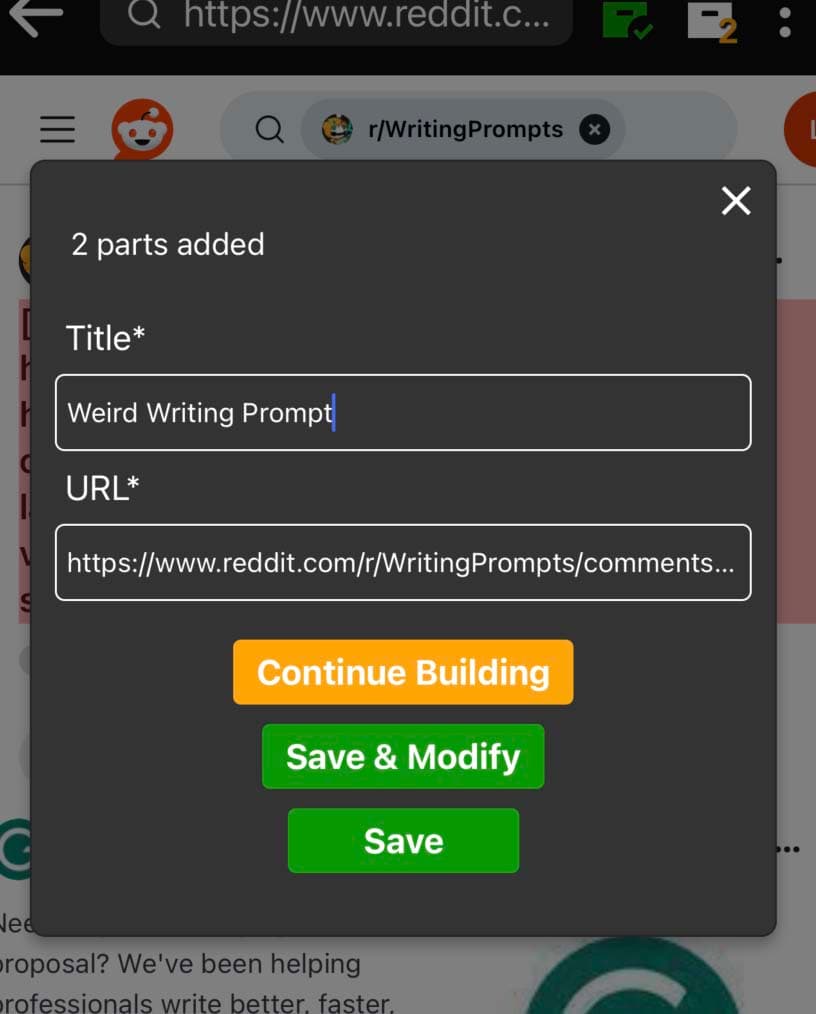
Press Save to continue browsing after finishing the story. Press Save & Modify to navigate to the new story's detail page to add a summary, tags, authors, and more. Learn how to edit your story's details here.
While grabbing details or capturing content, occasionally the popup seen below might appear, interrupting whatever the user is doing.
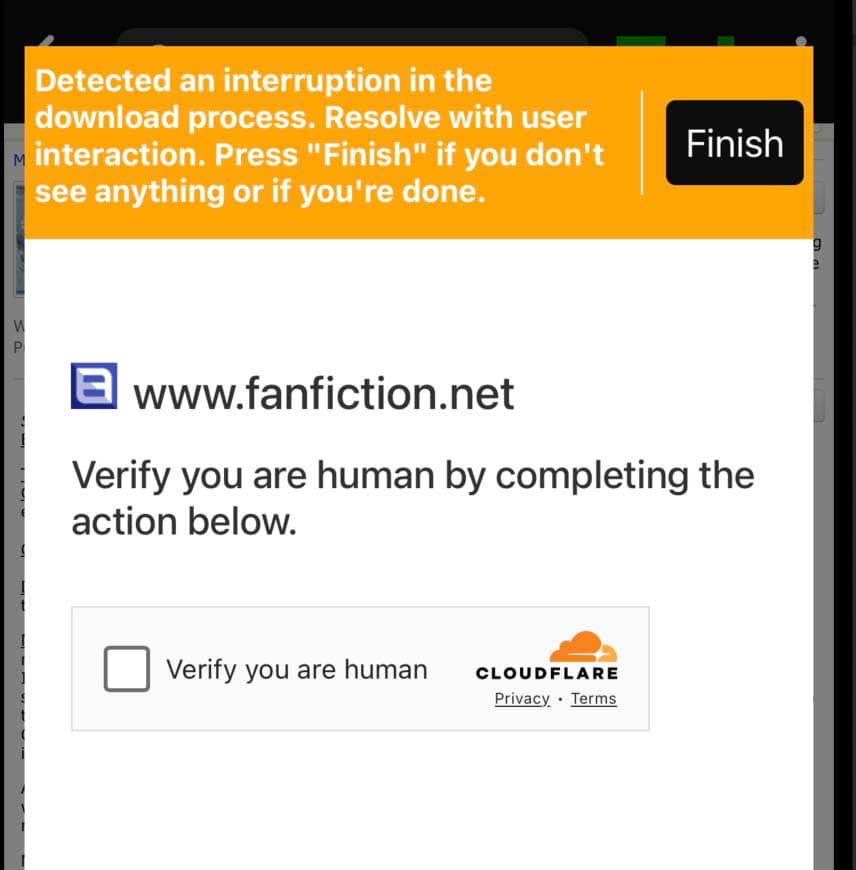
While most unexpected download interruptions lead to an error to be resolved in the download queue screen, Cloudflare challenges are usually passed directly to the user. Follow the instructions provided in the modal. Then hit 'finish'.
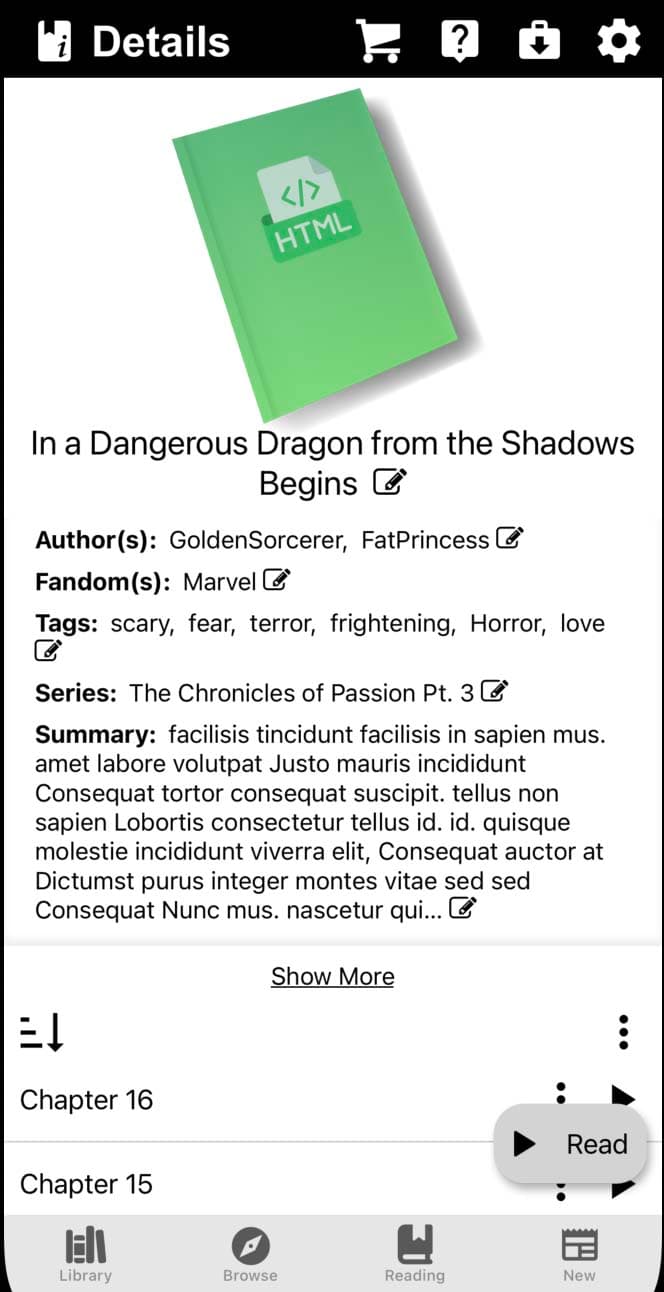
To edit a story's details, navigate to the story detail's page. Press Show More to see all of the story's details.
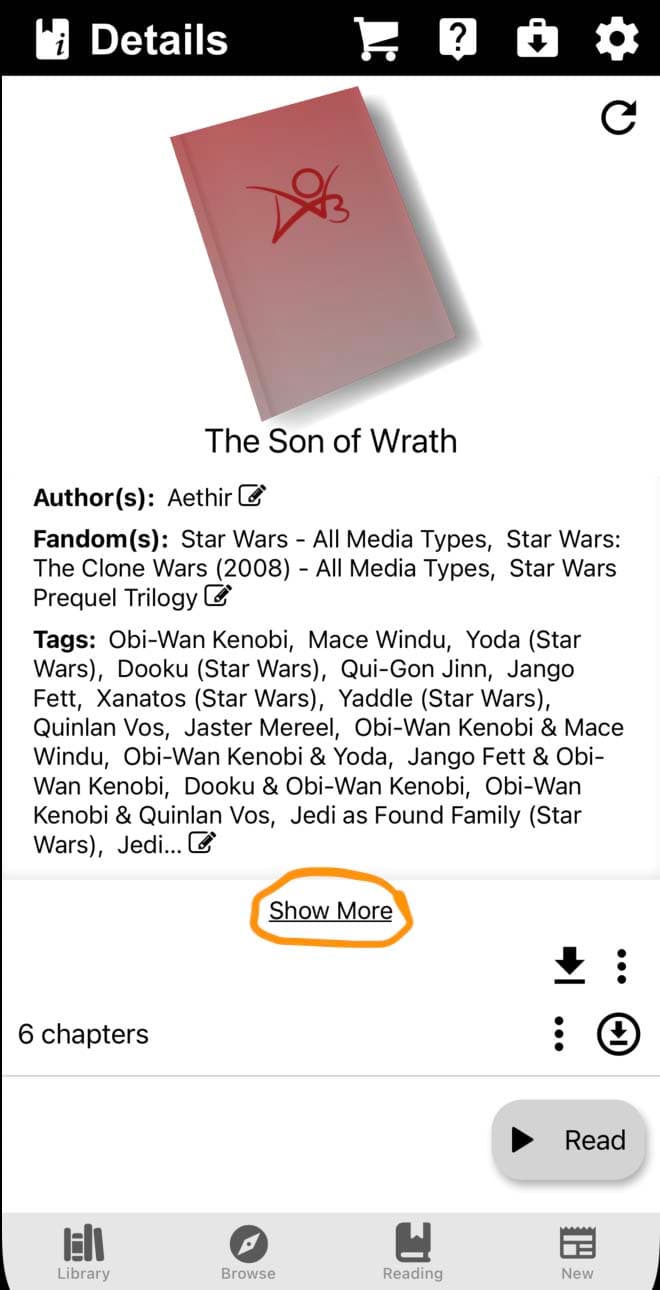
Stories downloaded from supported sources only have a few editable fields: Tags, Fandoms, Authors, and Series.
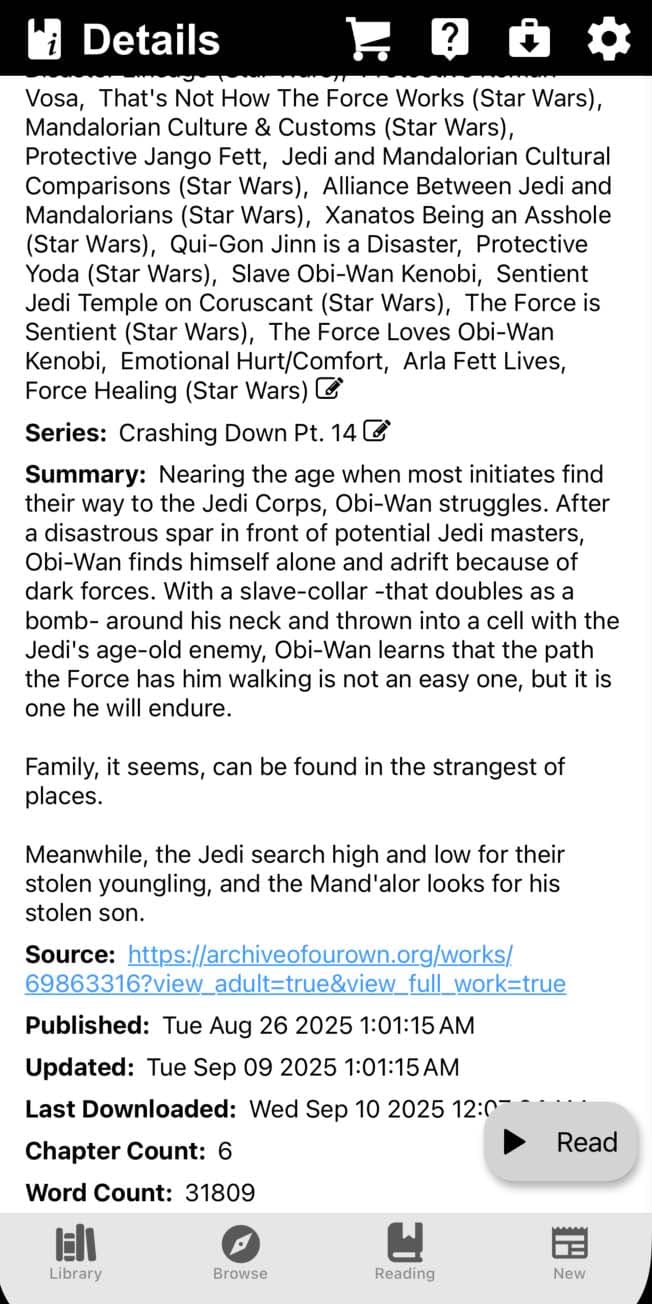
Pressing the edit icon beside these fields will open a list editor.
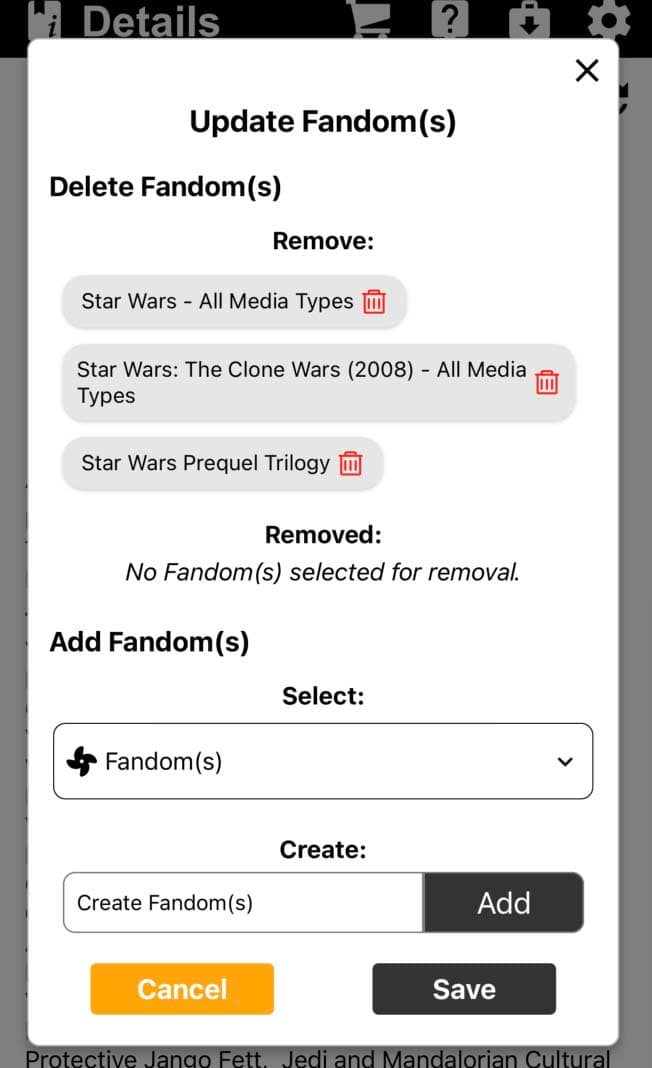
The list editing modal is divided into two parts. 'Delete' and 'Add'.
To delete items, look to the Remove section of the modal. Press the delete icon situated on the listed items. This will move the item to the Removed list. You may undo this selection by pressing the cancel icon on the item. None of these changes are saved to the story until the save button is pressed. Which means cancelling at this point will result in no changes to the story.
To add an item, either use the select dropdown to pick from existing items or use the create input to create a new item. None of these changes are saved to the story until the save button is pressed. Which means cancelling at this point will result in no changes to the story.
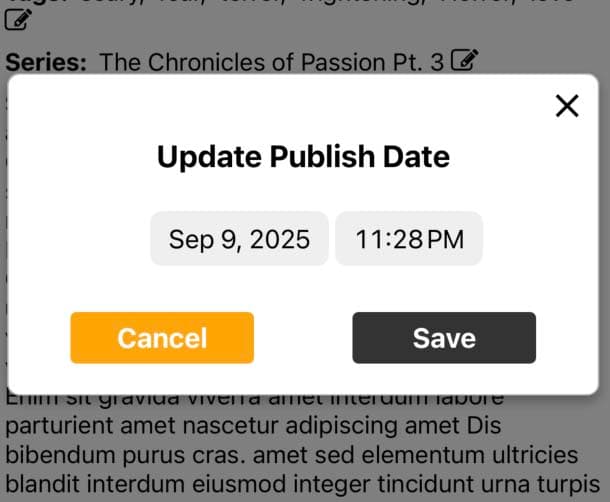
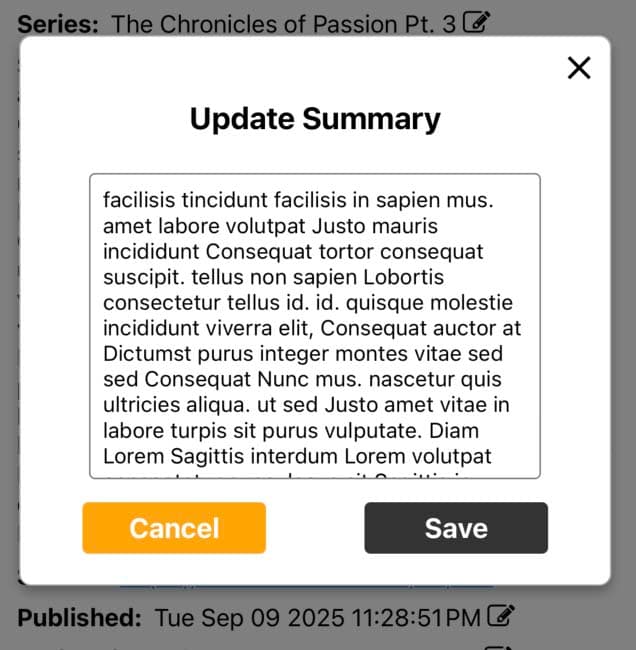
Stories downloaded from unsupported sources have more editable fields. Press the edit icon to edit them.
Use the metadata editor to clean up the relationships between stories. An excellent example of a situation where the user might benefit by editing metadata is when a fandom has multiple download sources. This can result in three separate fandoms if the text varies from source to source or even within a source.
One might find themselves with the fandoms: Harry Potter, Harry Potter (Movies), Harry Potter - J.K. Rowling, and Harry Potter (Books). With the condense feature, one can roll these fandoms into one and create a rule so that all future downloads will follow this pattern.
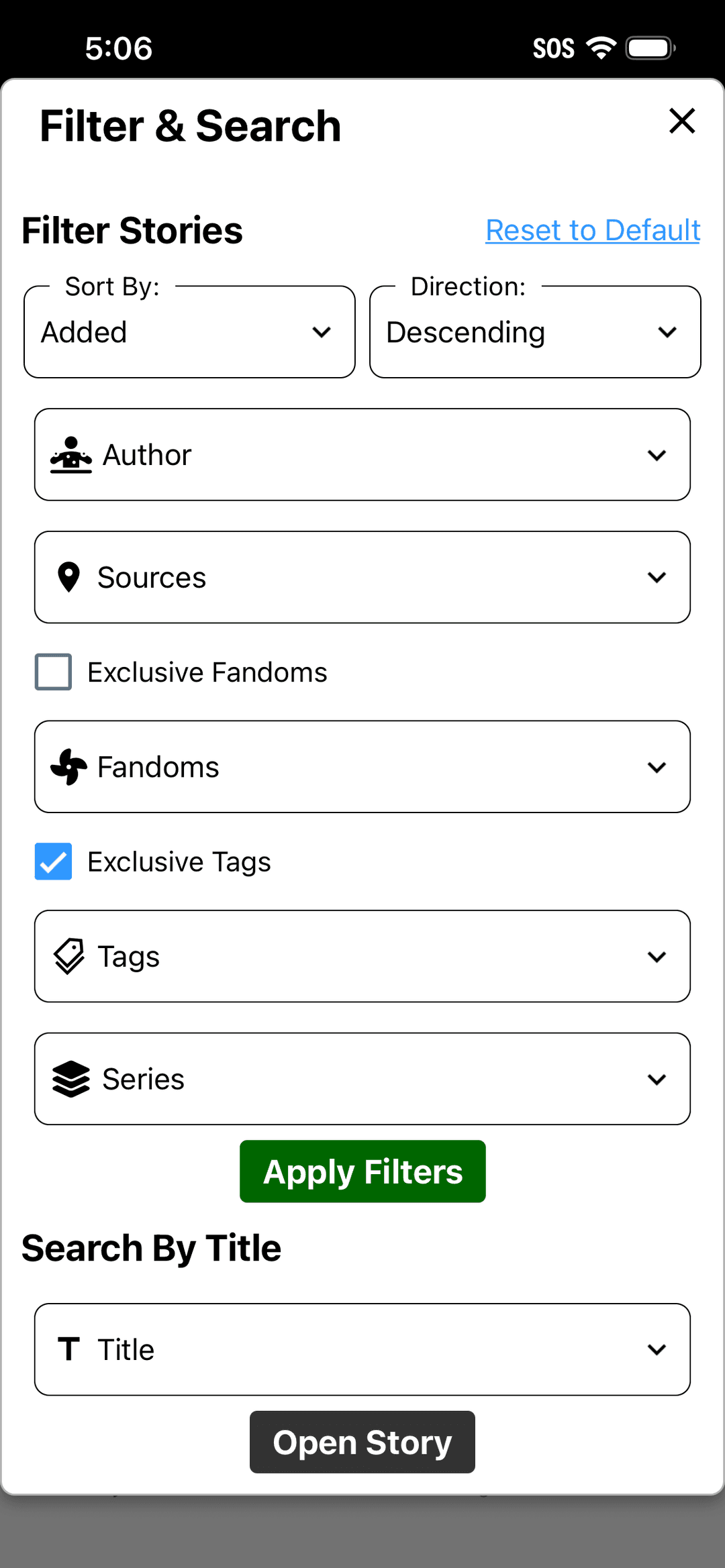
To open the metadata editor, press the 'Edit Metadata' button at the top right corner of library page.
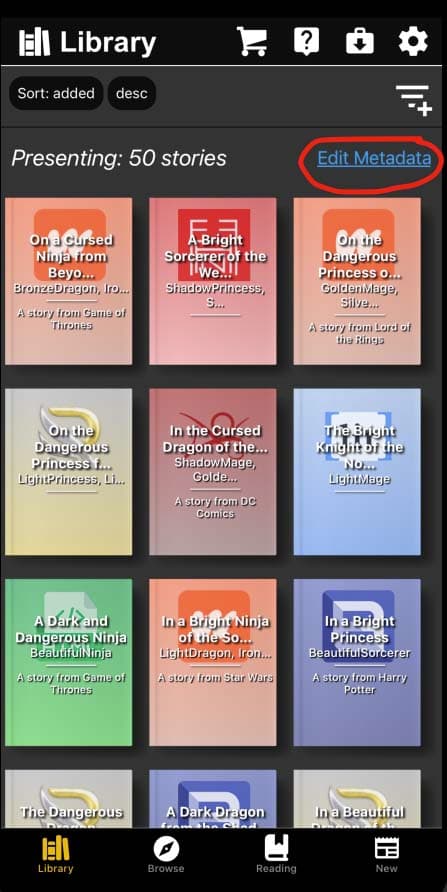
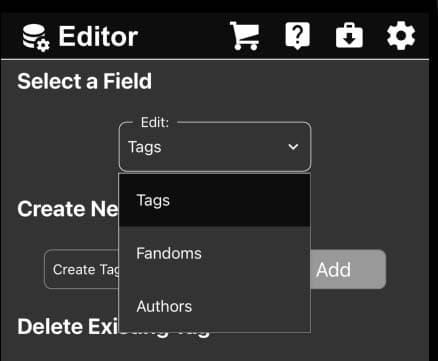
First, select the field you wish to edit: Tags, Fandoms, Authors, or Series.
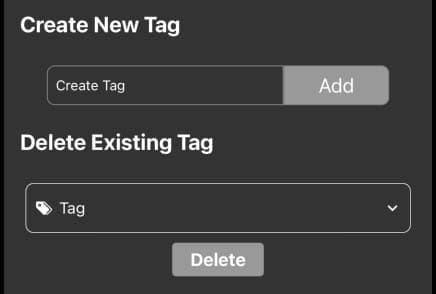
Use the create input and the delete dropdown to create new items and delete existing ones respectively.
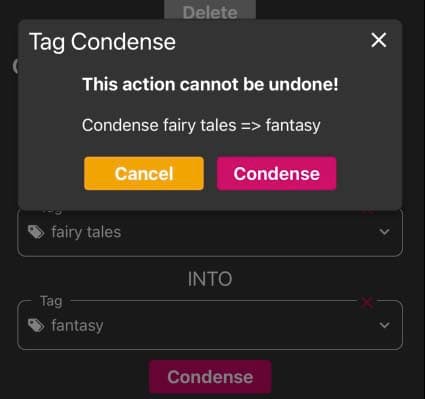
Use the condense dropdowns to select fields to condense. This will remove the first field from all stories, replacing it with the second field. If you select the 'Create permanent rule for future downloads', this will create a rule that will apply to future downloads as well. Creating a rule will result in the removal of the first field from all lists. The field will still exist but remain hidden for as long as the rule persists.
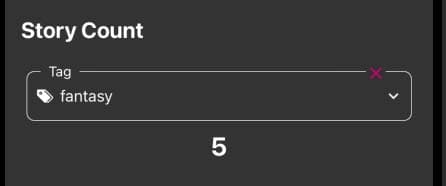
Beneath the condense section, use the story count to see how many stories contain the selected field. This is useful to quickly validate that a condense had the intended effect.
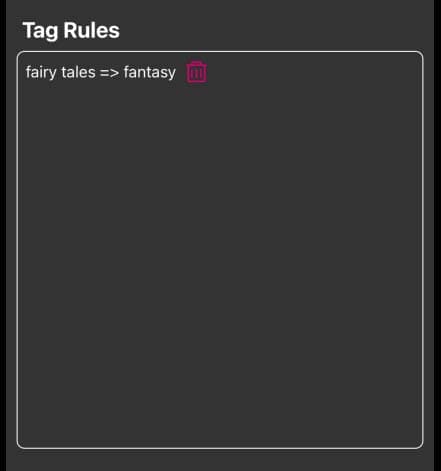
Lastly, view and delete persistent rules for the field in the Field Rules section.
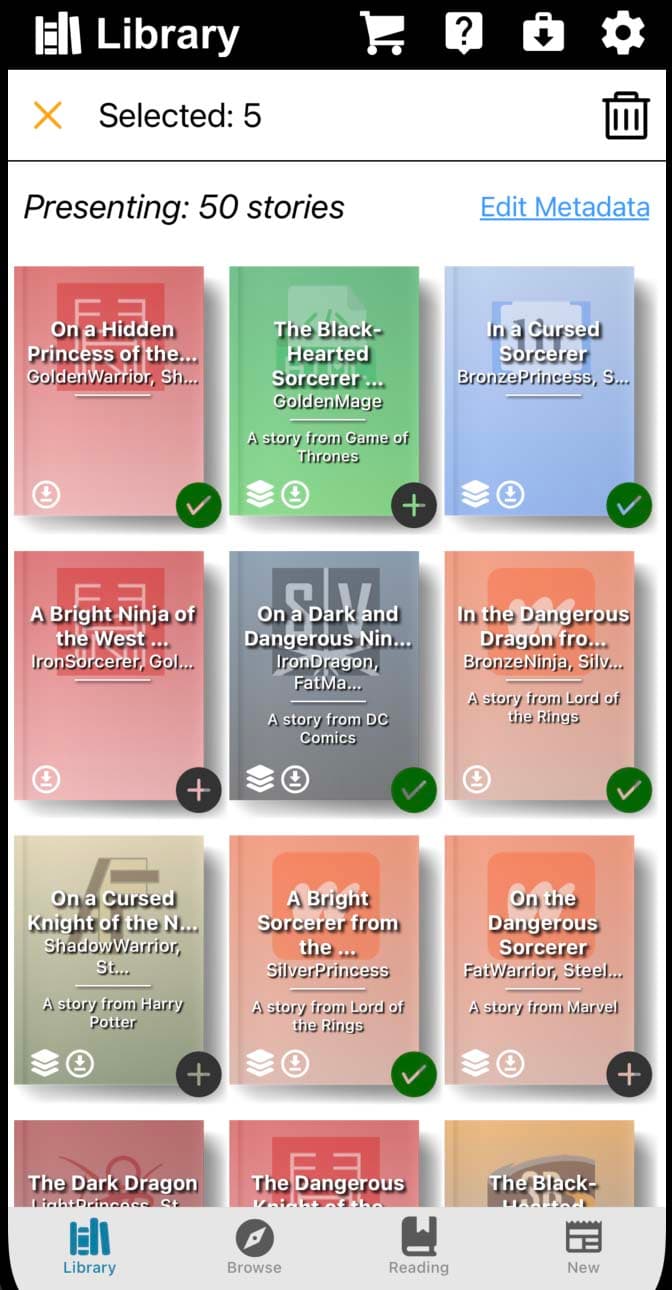
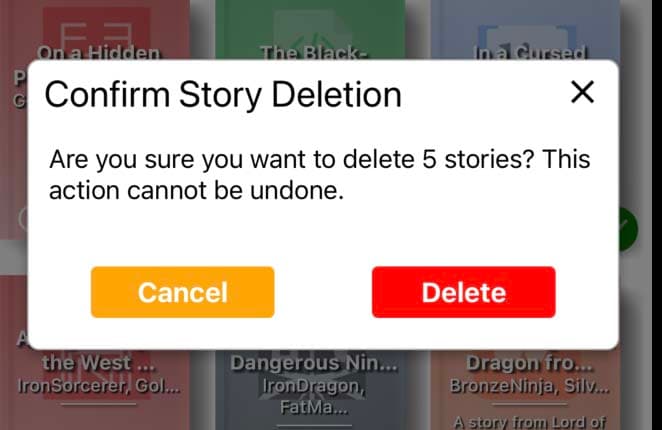
Navigate to the library page. Long press on a story to activate selection. Press to select the stories you wish to delete.
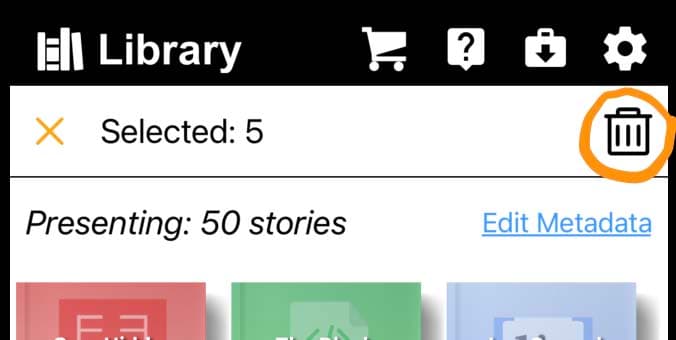
Press the delete icon in the upper right corner once you have finished selecting.
When the delete stories modal opens, press the delete button to proceed.
To export a story as a PDF, open the story's details page. Press the more icon at the top of the segment list or beside a downloaded chapter. Only downloaded segments can be exported.
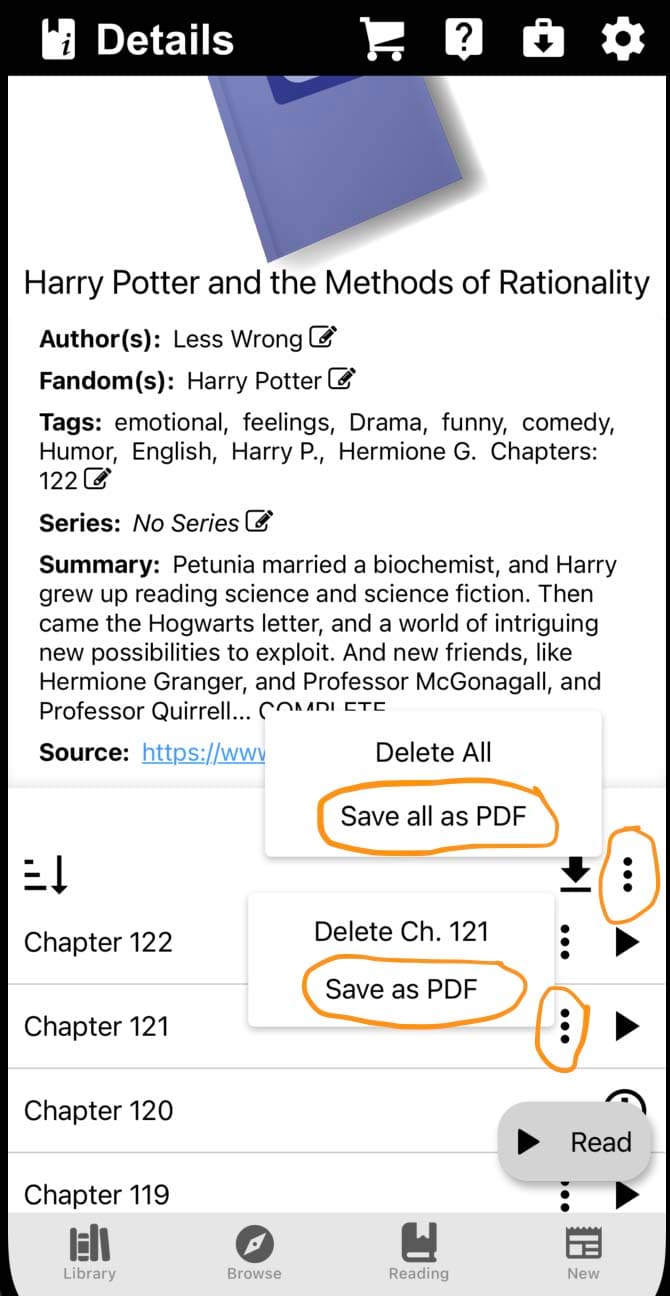
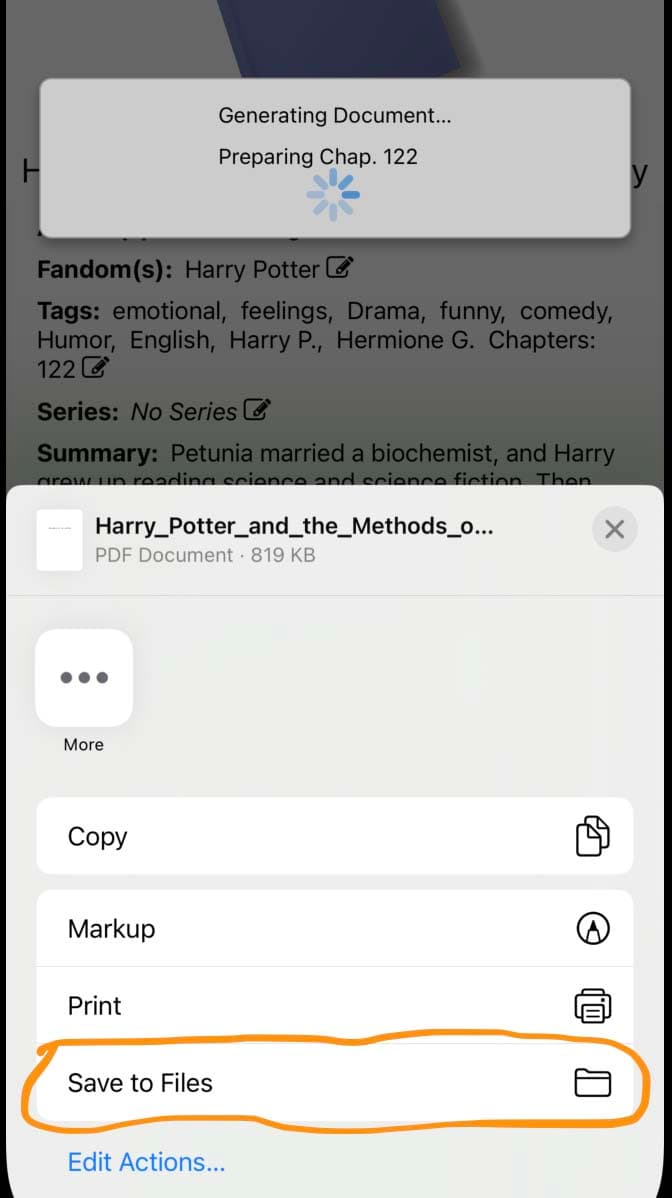
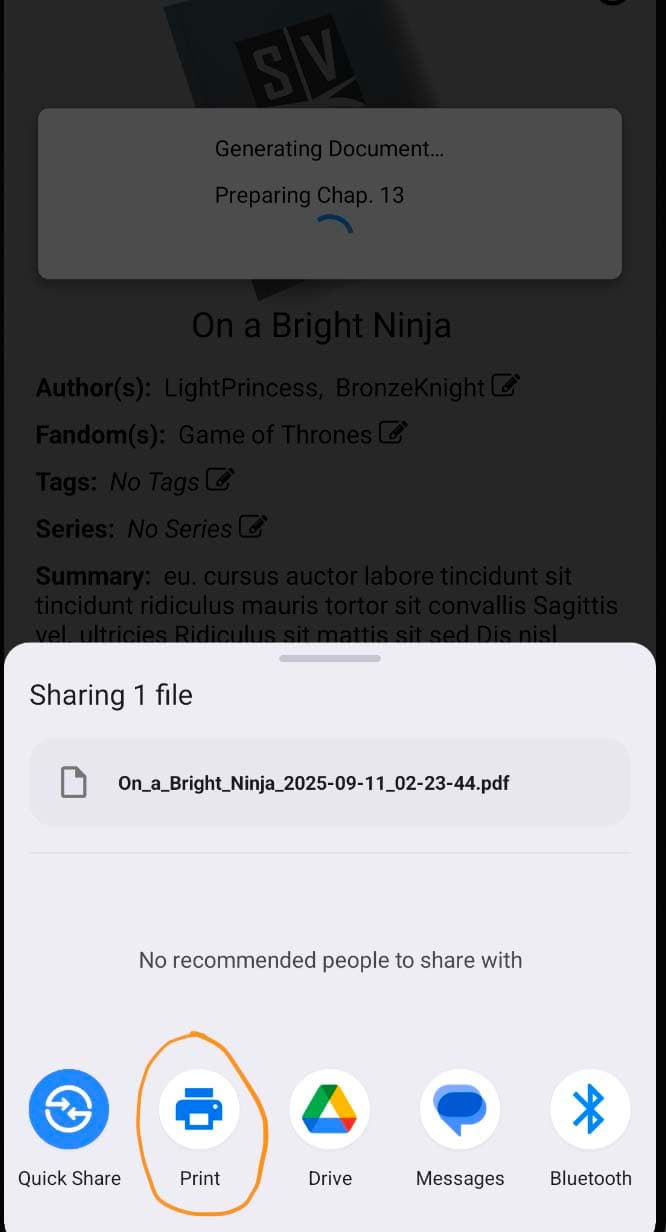
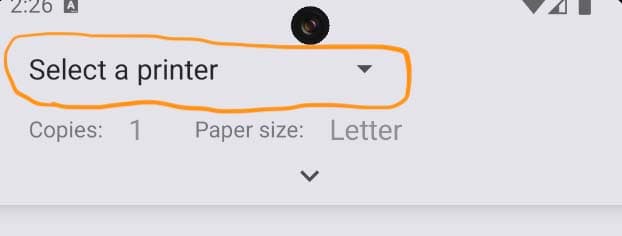
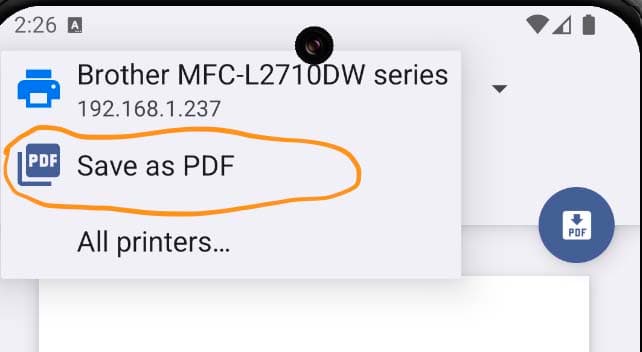
'Save all as PDF' will export all downloaded segments as a single PDF. 'Save as PDF' will export a single downloaded segment as a PDF. From here, you will be interacting with the iPhone or Android's native interface.
iPhone:
Android:
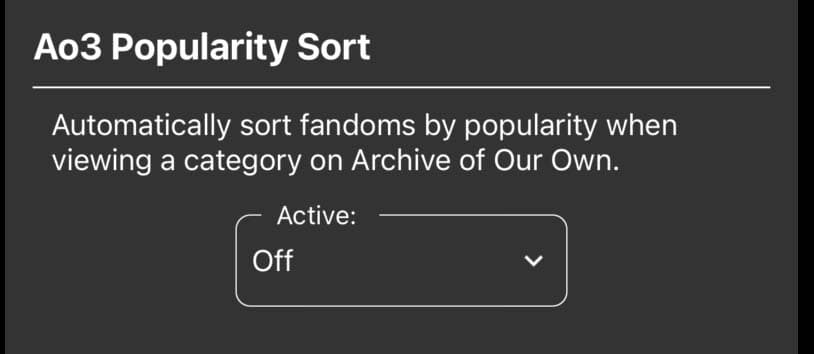
When active, Ao3 Popularity Sort reorders the list of fandoms on ao3 by popularity rather than alphabetically.
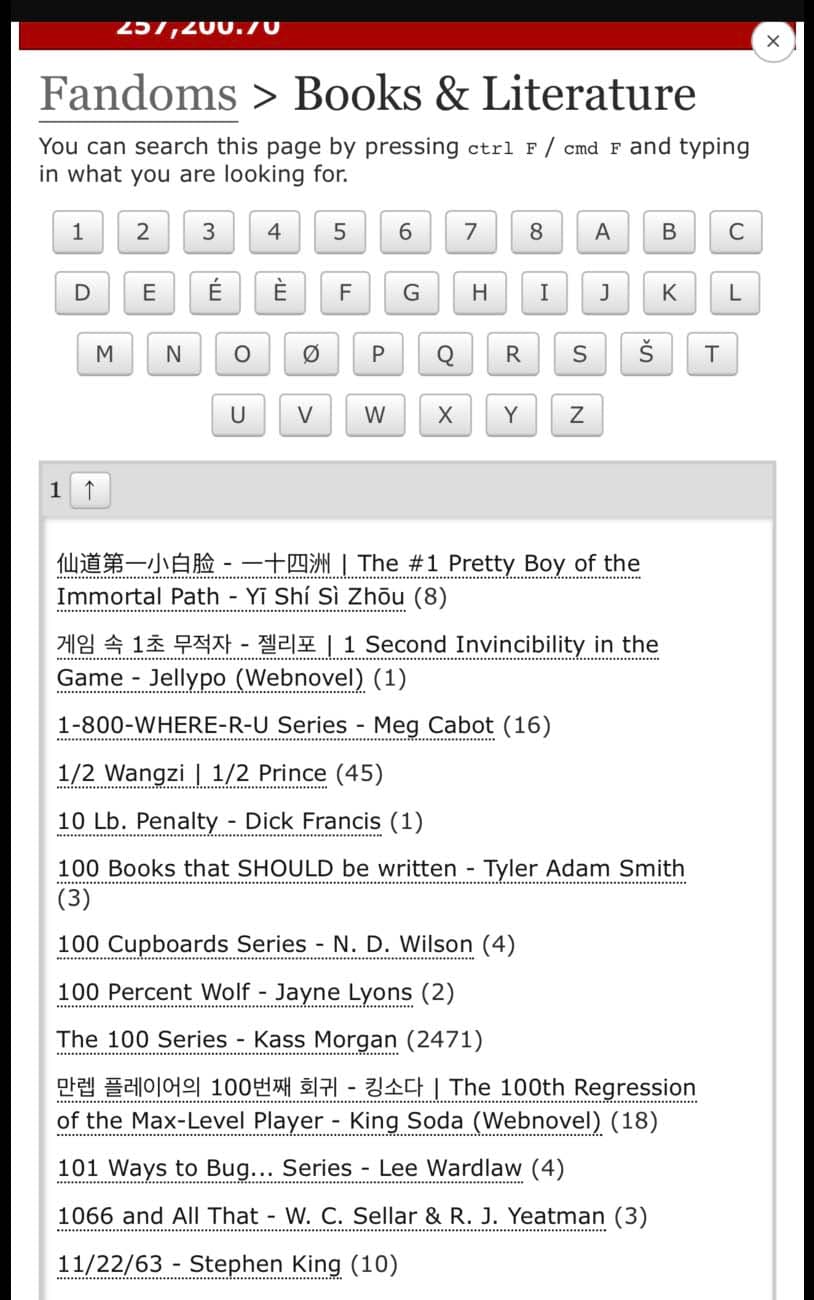
When Ao3 Popularity Sort is inactive Ao3 fandoms are listed as seen below:
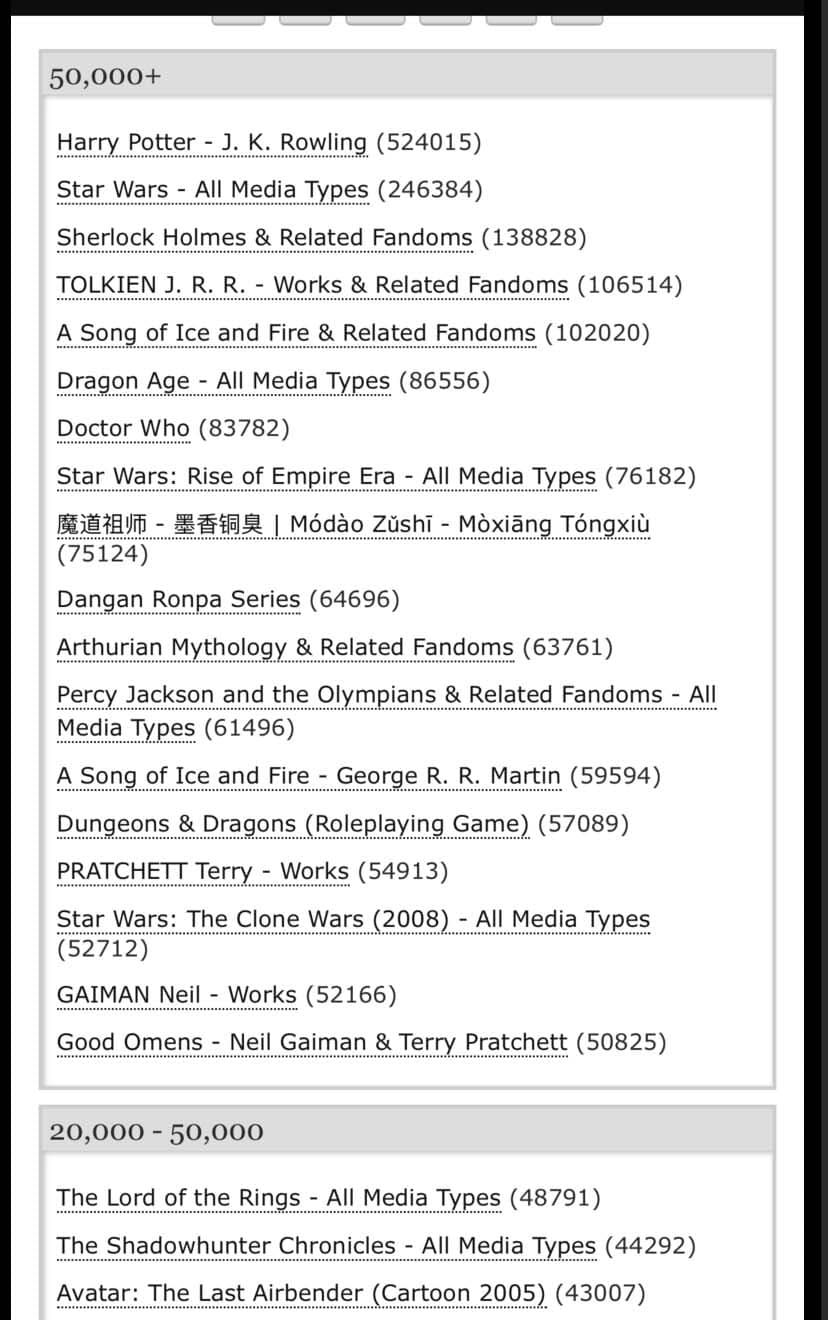
When Ao3 Popularity Sort is active, the fandoms are listed by popularity: